Shopcada
  • Features
    • Everything you need to sell
    • Automation
    • Sell everywhere
    • Scalable
    • Continuous Support
  • Sell
    • Web
    • POS
    • ShopcadaPay
    • Marketplaces
  • Work
  • Support
    • Guides
    • Blog
    • Support
  • Login
  • Request Trial
Shopcada
  • Features
    • Everything you need to sell
    • Automation
    • Sell everywhere
    • Scalable
    • Continuous Support
  • Sell
    • Web
    • POS
    • ShopcadaPay
    • Marketplaces
  • Work
  • Support
    • Guides
    • Blog
    • Support
  • Features
    • Everything you need to sell
    • Automation
    • Sell everywhere
    • Scalable
    • Continuous Support
  • Sell
    • Web
    • POS
    • ShopcadaPay
    • Marketplaces
  • Work
  • Support
    • Guides
    • Blog
    • Support
  • Request Trial
Help Center/ Setup/ SEO / Tracking/ URL Redirect
SEO / Tracking
Setup Google Analytics URL Redirect Set Up SEO Meta Tags Google Tag Manager Setup Google AdWords Remarketing Tag

URL Redirect

Updated 4 Sep 2016 1 min read


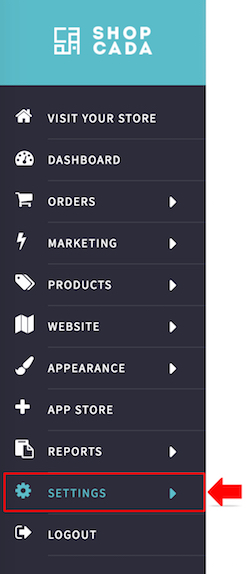
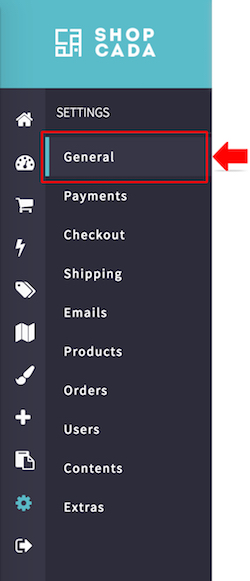
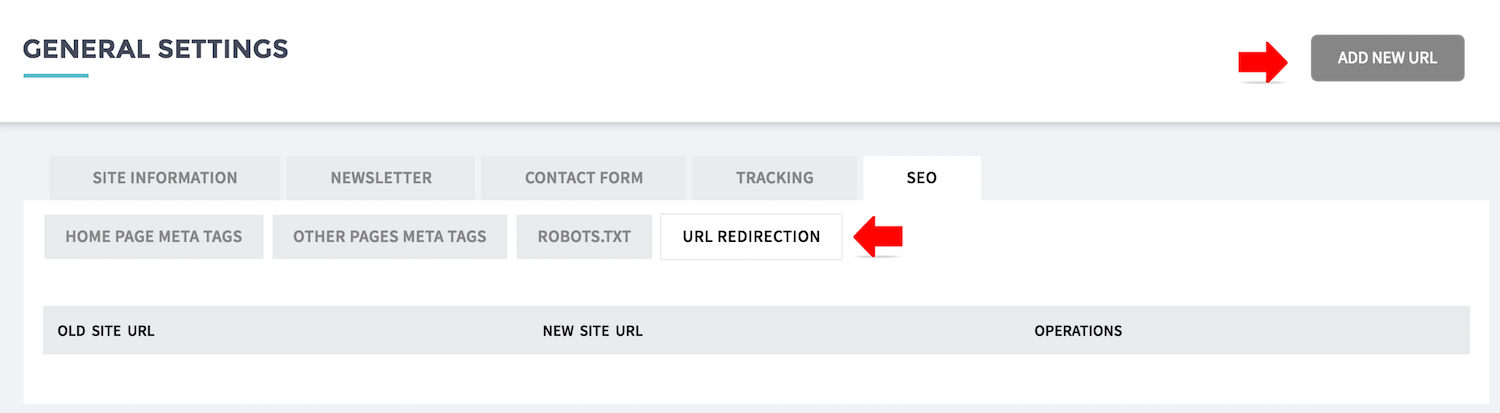
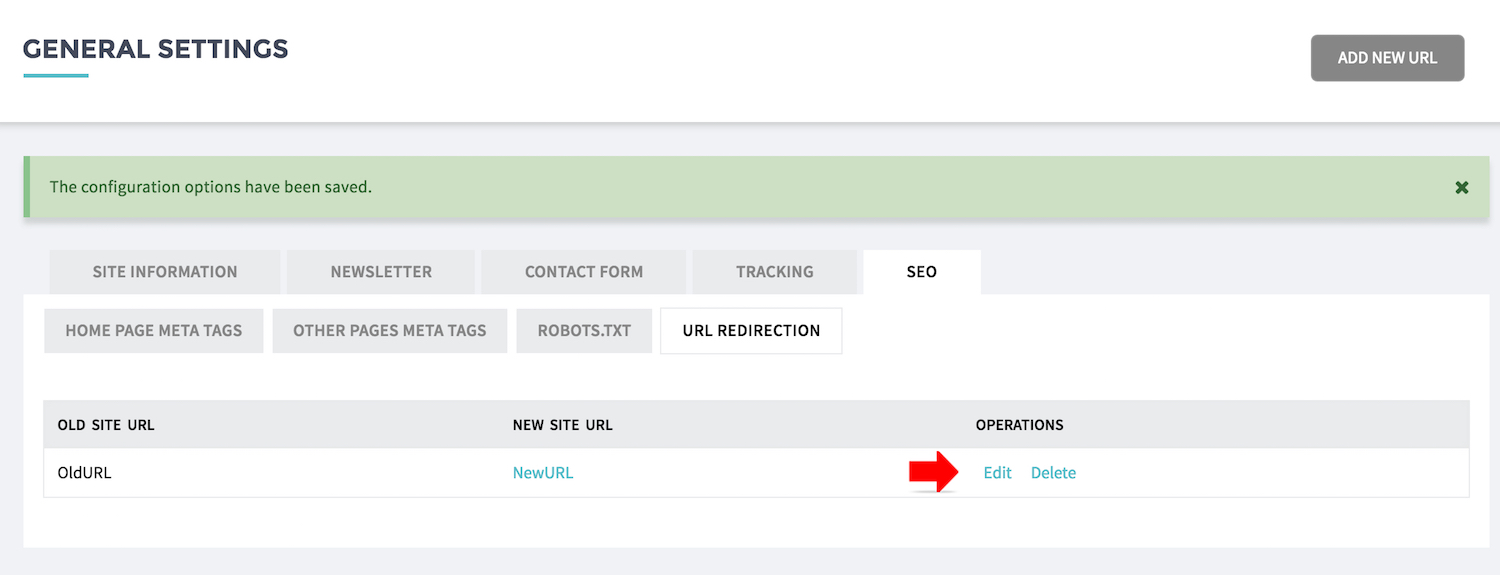
  • Go to SETTING then go to GENERAL page, tab SEO
  • Click [ADD NEW URL]

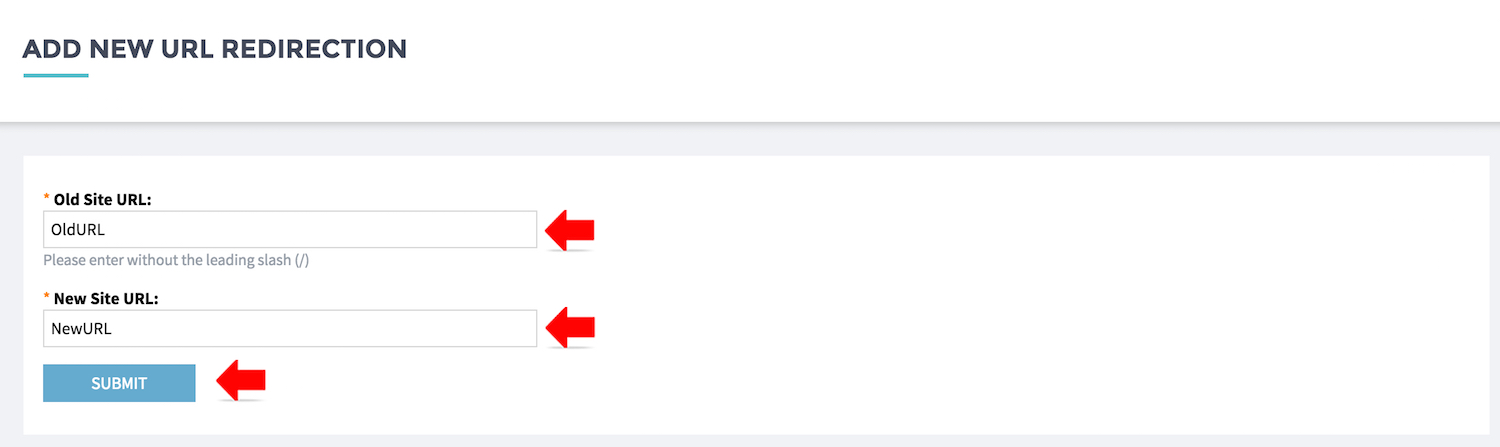
  • Enter both the OLD and NEW URL
  • Click [SUBMIT] to save the setting.

  • Click [EDIT] to update the URL setting

Related articles

Setup Google Analytics Set Up SEO Meta Tags Google Tag Manager Setup Google AdWords Remarketing Tag
On this page
Shopcada
© Copyright Shopcada. 2026. All Rights Reserved.

Sell Everywhere

  • Web
  • POS
  • Marketplace

Products

  • Features
  • Showcases
  • API

Company

  • Contact Us
  • Terms of Service
  • Privacy Policy
  • Personal Data Protection Policy

Customer Care

  • Guides
  • Blog
Shopcada
© Copyright Shopcada. 2026. All Rights Reserved.