


Overview
A gift receipt lists what the customer bought, with no prices, so the person receiving the gift can exchange it.
Set Up Gift Receipts for an Outlet
- Navigate to Dashboard > POS > Outlets, then click Edit on the outlet.
- Fill in the two fields in the POS Receipt section.
- Click Save.
- Restart the POS app or log in again on each iPad, so it loads the new settings.
| Field | Description |
|---|---|
| Gift Receipt Template | The layout of the gift receipt. Keep System Default unless Shopcada has built a custom gift receipt template for you in the Receipt Editor. |
| Gift Receipt Footer | Required to offer gift receipts. Your exchange terms and a closing message, printed at the bottom of the gift receipt. |
Write the footer for the person receiving the gift. They don’t have the original receipt, so don’t ask for it.
If you set a last exchange date, the gift receipt prints it above the footer.
Last Exchange Date
- Navigate to Dashboard > POS > Settings.
- Enter your exchange window in Number of days till last exchange date, in the General section.
- Click Save configuration.
- Restart the POS app or log in again on each iPad, so it loads the new setting.
This setting applies to every outlet.
The purchase day counts as day one. With 7 days, a purchase on 1 Feb can be exchanged until 7 Feb.
The date always counts from the purchase, so a reprint shows the same date.
If the field is blank or 0, the gift receipt prints no date.
Print a Gift Receipt
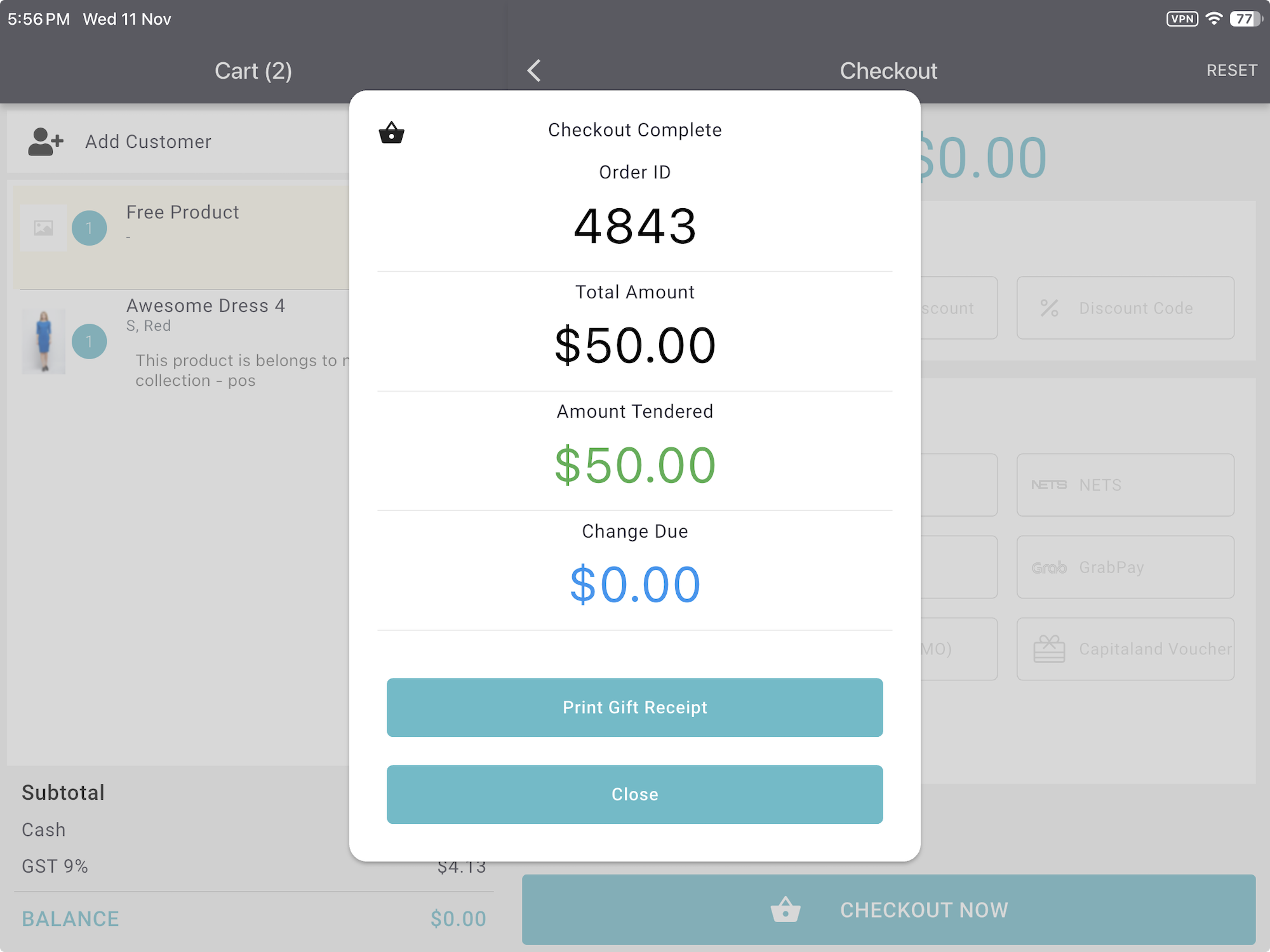
At Checkout
- Complete the sale.
- Tap Print Gift Receipt on the Checkout Complete screen.
From Order History
- Open the order in Order History.
- Tap Print Gift Receipt.
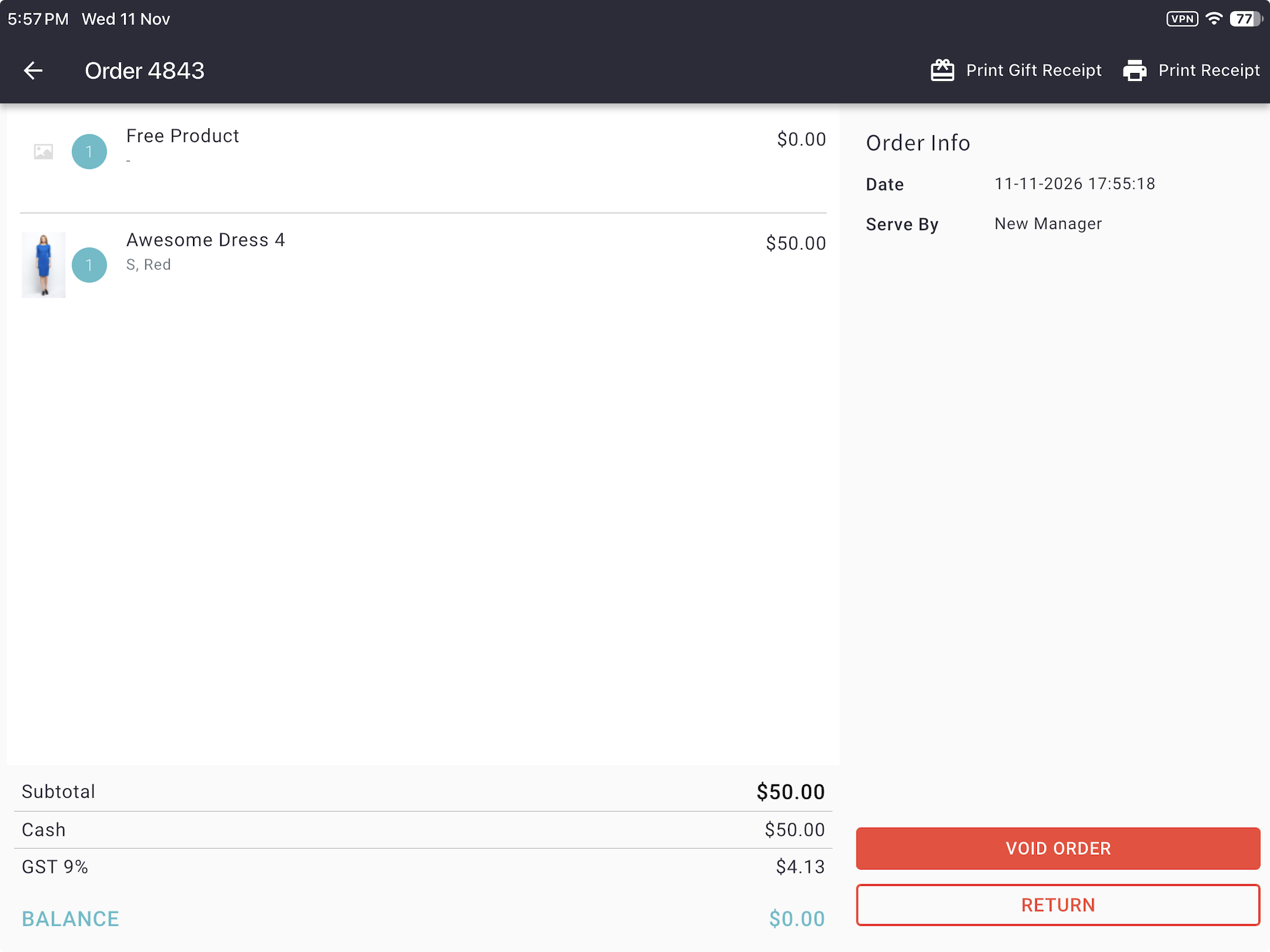
Each tap always prints one copy, and the cash drawer doesn’t open.
If Order History shows only today’s orders, open an older order this way:
- Tap Admin Menu > Store Operation > Return / Exchange.
- Enter the receipt number.
- Tap (i).
When the Button Is Missing
The POS hides Print Gift Receipt when:
- the outlet’s Gift Receipt Footer is blank
- the order is an exchange order
- the order is voided
- every item on the order has been refunded
- the order belongs to another outlet
- the iPad runs a POS app older than 2.17.0
What Prints
The gift receipt prints:
- your receipt header
- GIFT RECEIPT
- the receipt number and purchase date
- each item with its options, such as size, and its quantity
- the total number of items
- the last exchange date, if set, and your Gift Receipt Footer, under Gift Exchange Terms
It never prints prices, discounts, GST, payments, the cashier, the customer or item remarks.
A reprint leaves out anything already refunded. A partly refunded item prints with its remaining quantity.
A customer deposit prints as an item with its quantity. Its amount and balance don’t print.
Exchange a Gift
- Tap Admin Menu > Store Operation > Return / Exchange.
- Enter the receipt number from the gift receipt.
- Exchange the item as usual.
The exchange receipt shows prices.
